What your staff see: a Windows 365 Cloud PC
Each person gets their own Windows 11 Enterprise desktop, running in Microsoft's cloud in the United States and streamed to whatever device they use. Company data stays inside the Cloud PC, not on their own device.
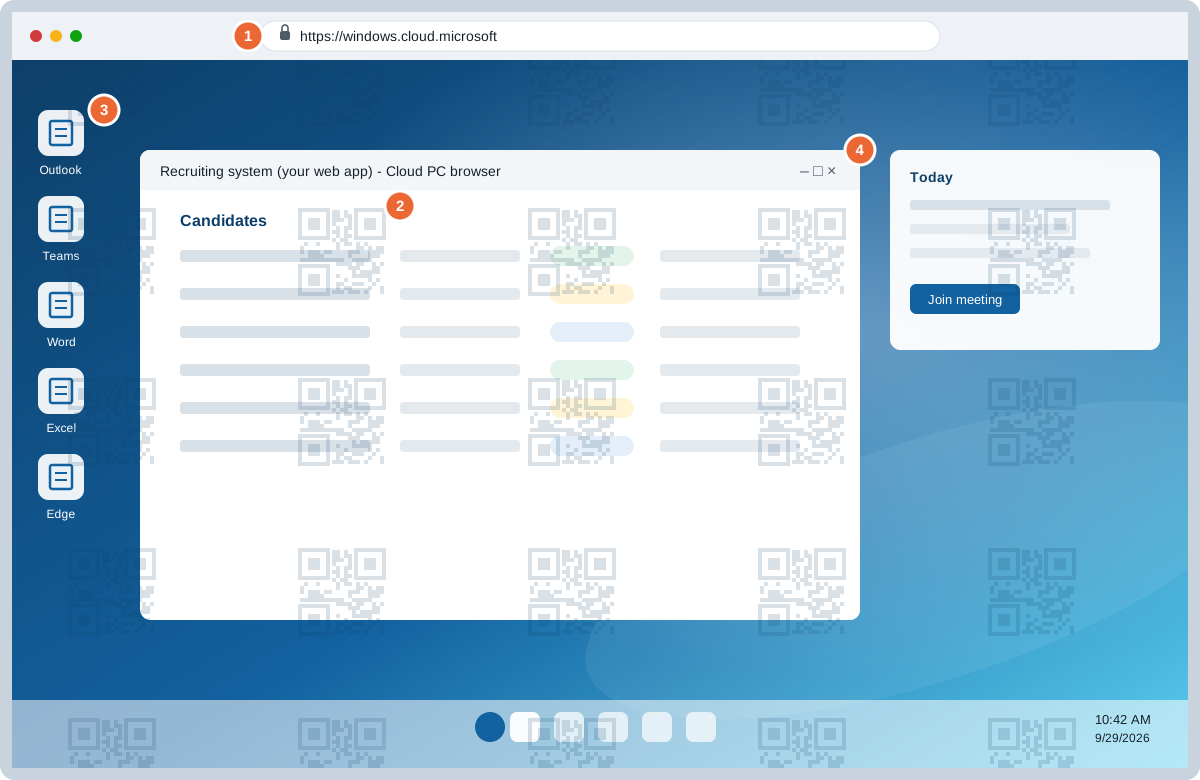
- Opens in the web browser at windows.cloud.microsoft, or in the Windows App on Windows or Mac. Staff sign in with their work account and your multi-factor authentication.
- A traceable watermark. A faint QR code across the screen identifies the Cloud PC, so a photo of the screen can be traced back to it on the Data protection page.
- The Microsoft 365 apps, including Outlook, Teams, Word and Excel, on a full Windows 11 Enterprise desktop.
- Your business tools, such as Bullhorn, GHL and Sense, run in the Cloud PC's own browser, exactly as on a physical PC.
What stays inside the Cloud PC
Copy and paste, file transfer, USB drives and printing between the Cloud PC and the person's own device are blocked by default. Hosted in Microsoft's US West geography, so the work, and the data it touches, stays in the United States.